Skip to content

New at Karaoke24Beta

Make your own karaoke with lyrics

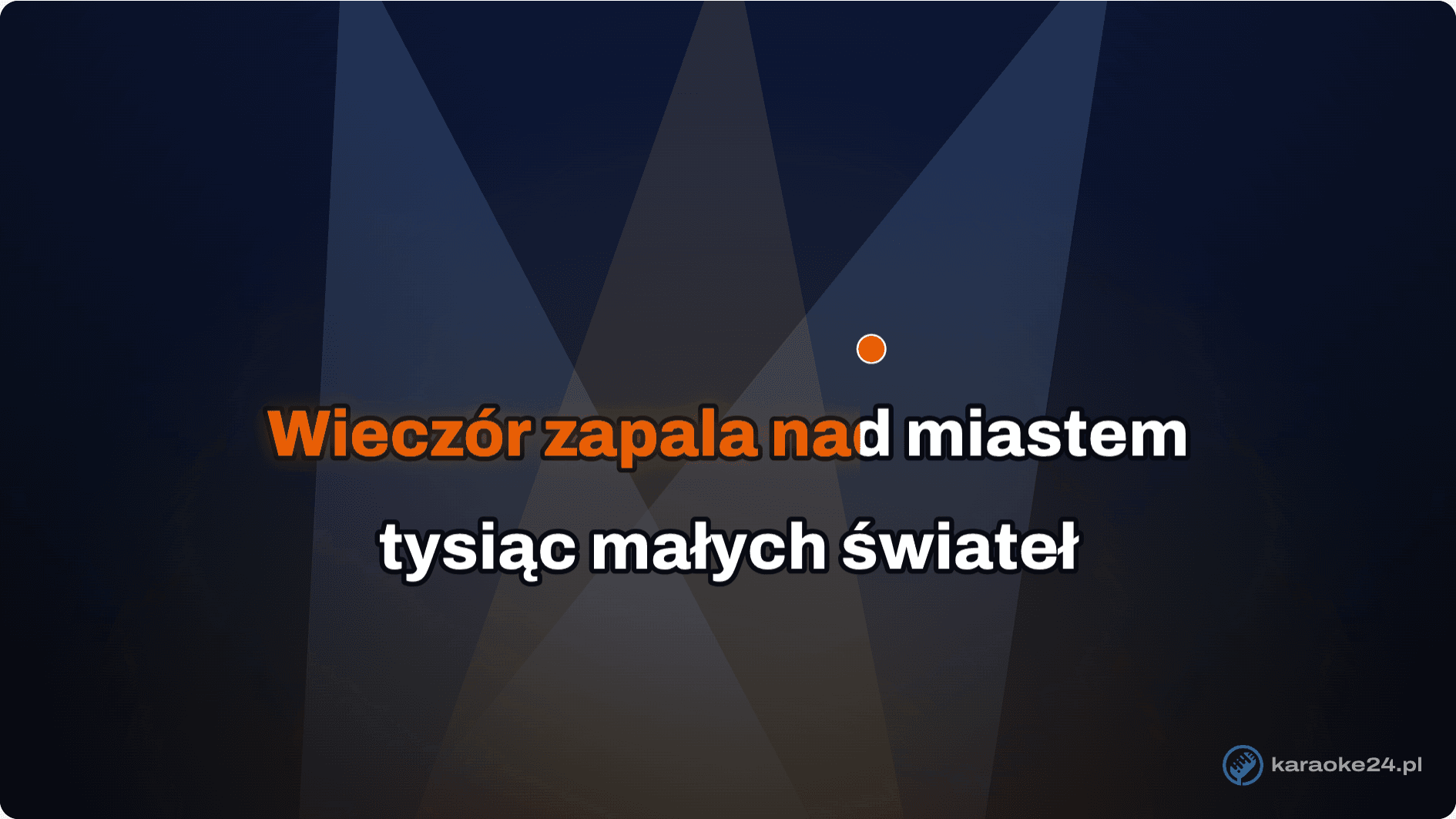
Paste the lyrics, then tap the Space bar in time with the music. The editor turns this into lyrics that change colour exactly when it is time to sing. Play the finished clip on a TV, a keyboard or a karaoke machine.

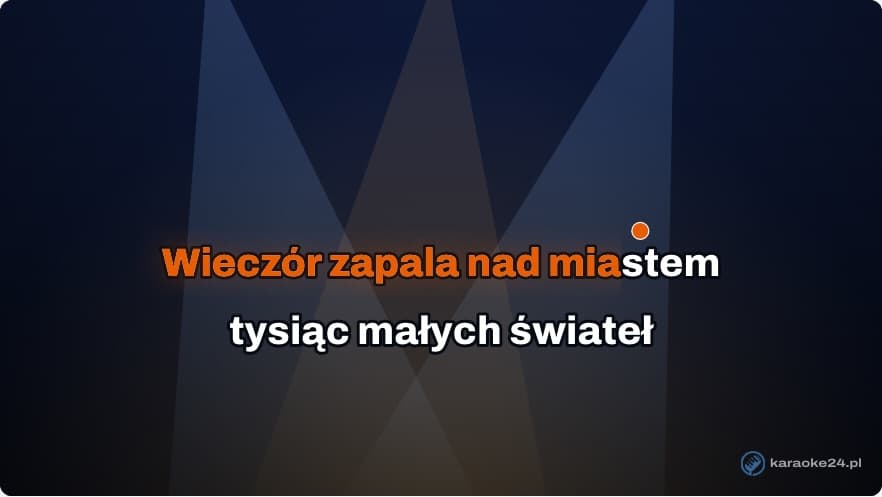
Karaoke clip from the editor: the lyrics change colour and a ball bounces over the syllables

How it works – three steps

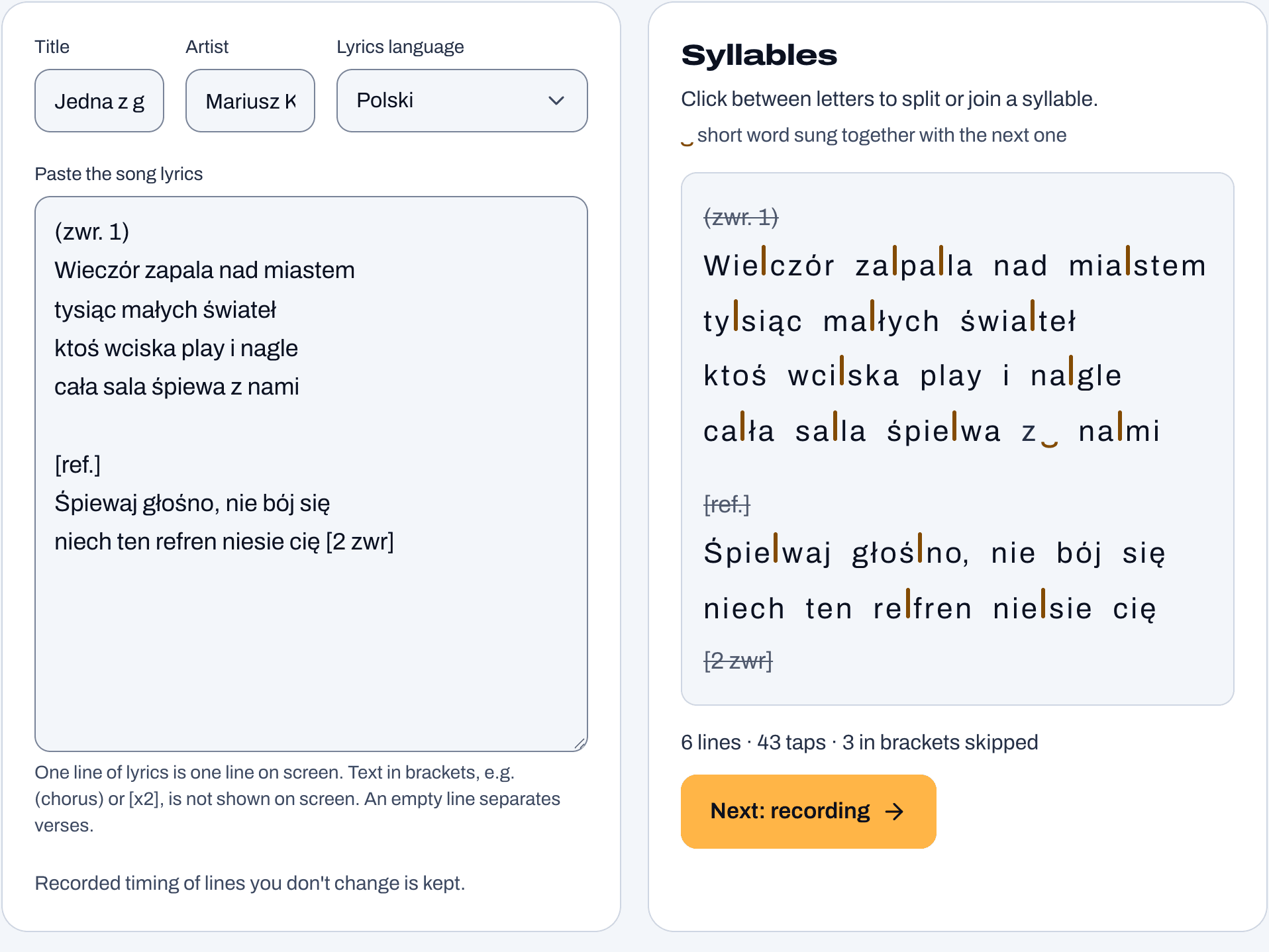
  1. Karaoke editor screenshot: Lyrics1

    Lyrics

    Paste the song lyrics. The editor splits them into syllables – you can fix the split with one click.

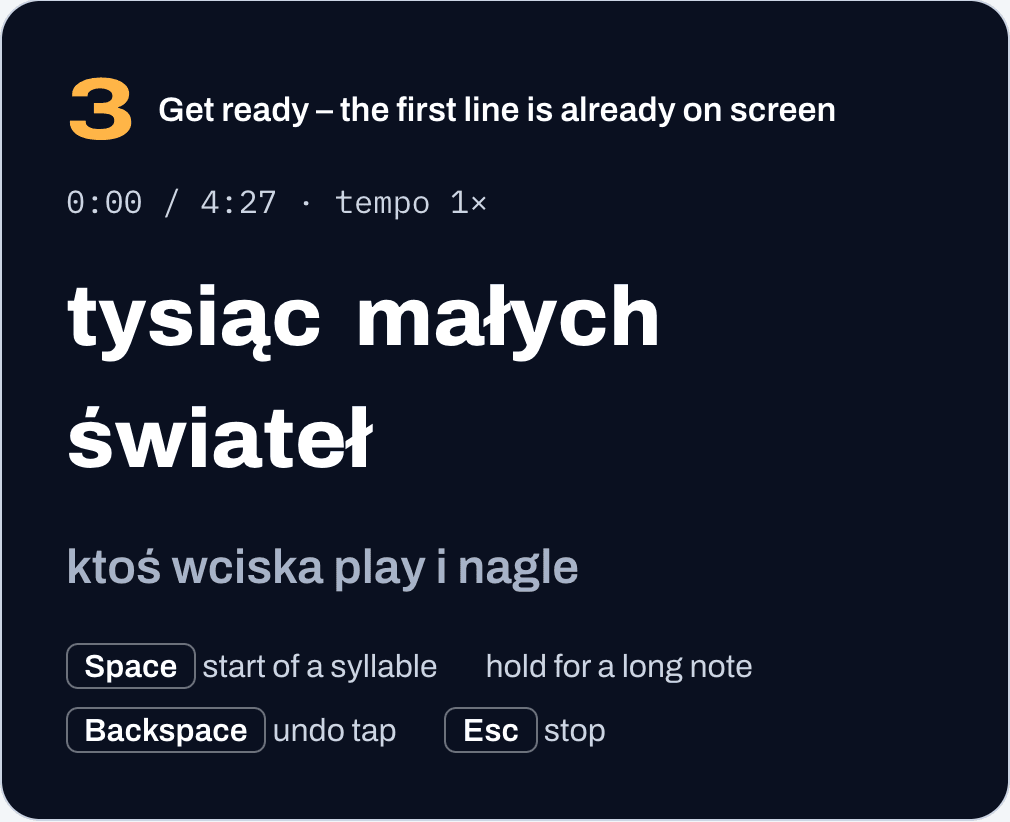
  2. Karaoke editor screenshot: Recording2

    Recording

    Listen to the song (it can play slower) and press Space at the start of each syllable. Undo a mistake with Backspace.

  3. Karaoke editor screenshot: Preview and save3

    Preview and save

    Watch the clip, adjust single syllables and save the file. Everything happens in your browser, on your computer.

What you get

  • MP4 video

    For a TV (from a USB stick), laptop, projector and karaoke software. 16:9, 4:3 or vertical picture, 1080p or 720p.

  • CDG + MP3

    For keyboards and karaoke machines, e.g. Yamaha Genos, Korg Pa. Two files with the same name in one ZIP.

  • MP3 with lyrics

    For keyboards that show the lyrics stored in the MP3 file. New – we are still testing it on different instruments.

What it is good for

Karaoke night in a club or pub

Missing a song the guests keep asking for? Make it yourself.

  1. Save an MP4 video (16:9, 1080p) and play it on a screen or projector – from a laptop or a media player.
  2. If you run karaoke in software that reads CDG files, save CDG + MP3 and add them to your song list.
  3. The bouncing ball shows guests when to come in – even those singing for the first time.

For a keyboard and a band

You play at weddings or parties and want the singer to have the lyrics in front of them.

  1. Buy the backing track in the singer’s key – you time the lyrics to exactly that version.
  2. Save CDG + MP3 or MP3 with lyrics and copy it to a USB stick for the keyboard (e.g. Yamaha Genos, Korg Pa).
  3. The lyrics appear on the keyboard’s screen or on a connected monitor – for the singer or for the guests.

Singing with friends at home

A birthday, New Year’s Eve, a family get-together – all you need is a TV.

  1. Make clips for a few favourite songs and save them as MP4.
  2. Copy them to a USB stick and plug it into the TV, or connect a laptop with an HDMI cable.
  3. You can also play the video from your phone on the TV, if the TV supports it.

Your own words for the occasion

New lyrics to a well-known tune – for a wedding, birthday, anniversary or hen party.

  1. Buy the backing track of a well-known song.
  2. In the editor, paste your own lyrics instead of the original ones.
  3. Record them and save the video – the guests will sing your version with the lyrics on screen.

Lyrics languages

The editor splits lyrics into syllables in six languages: Polish, Czech, Ukrainian, German, English and Spanish. You choose the language next to the lyrics.

What you need

  • A computer or laptop with a keyboard – on a phone the editor only shows the project.
  • An up-to-date Chrome or Edge browser (to save the MP4 video).
  • A Karaoke24 account and a purchased backing track or your own MP3 file.
  • Headphones or speakers.

Which keyboards it works on

Based on the manufacturers' manuals and our own tests. If you check a file on your instrument, write to us – we will update the table.

Lyrics file support on keyboards
InstrumentCDG + MP3MP3 with lyrics
Yamaha Genos, Genos2Per manualTested
Yamaha PSR-SX900, PSR-SX700Per manualPer manual
Korg Pa5X, Pa4X, Pa1000Per manualUser reports
Karaoke machines and MP3+G softwarePer manual—

Tested – we checked it ourselves. Per manual – described in the manufacturer's manual, not checked by us yet. User reports – works according to users, not in the manual.

The CDG and MP3 files must have the same name and sit in the same folder on the USB stick. With an MP3, Genos shows only one kind of lyrics – if a CDG file with the same name is next to it, it shows the CDG, not the lyrics stored in the MP3.

Questions and answers

How do I make a CDG karaoke file?

In the editor, paste the lyrics, record them with the Space bar in time with the song and in “Preview and save” click “Make CDG + MP3”. You get a ZIP file with a CDG and an MP3 of the same name – copy both to the USB stick.

Genos doesn't show the lyrics – what can I do?

Check that the MP3 and CDG have exactly the same name and are in the same folder. If you use an MP3 with lyrics, don't put a CDG with the same name next to it – Genos would show the CDG.

What's the difference between CDG + MP3 and an MP3 with lyrics?

CDG + MP3 is two files: the sound and a picture with the lyrics – karaoke machines and keyboards with MP3+G support read them. An MP3 with lyrics is one file with the lyrics and the time of every word stored inside – the keyboard shows the lyrics itself.

Does the editor work on a Mac and on a phone?

It works in the browser, also on a Mac. Recording needs a keyboard, so on a phone or tablet you can only view a project. You save the MP4 video in an up-to-date Chrome or Edge browser.

Can I use my own recording?

Yes, in the beta you can upload your own MP3 file (up to 30 MB) and add lyrics to it. WAV files work for tracks bought at Karaoke24.

Will a keyboard read the .LRC file?

Yamaha and Korg manuals don't mention .LRC files. For a keyboard choose CDG + MP3 or an MP3 with lyrics. The .LRC file is useful in players on a computer or phone.

The editor is a test version, free of charge during the beta. If something doesn’t work or is unclear, write to us – every comment helps.

We use cookies to ensure the proper functioning of the store and, with your consent, to analyze website traffic. Privacy Policy