
Karaoke editor manual
Step by step, with screenshots. You can read it next to the open editor.
With the karaoke editor you can make your own karaoke clip with lyrics: for a backing track bought at Karaoke24 or for your own MP3 recording. You paste the song lyrics and then tap the Space bar in time with the music. The editor turns this into lyrics that change colour exactly when it is time to sing.
You can save the finished clip as:
- an MP4 video – for a TV, laptop, projector or karaoke software,
- CDG + MP3 – for keyboards and karaoke machines,
- an MP3 with lyrics – for keyboards that show the lyrics stored in the MP3 file themselves (e.g. Yamaha Genos, Korg Pa).
What it is good for in practice (club, keyboard, singing with friends) is described on the page Make your own karaoke with lyrics.
1. What you need
- A computer or laptop with a keyboard. Recording means tapping the Space bar, so on a phone or tablet the editor only shows the project.
- The Chrome or Edge browser (up to date). In other browsers you can do the lyrics and the recording, but the MP4 video can only be saved in Chrome or Edge.
- A Karaoke24 account – sign in.
- A recording: a backing track bought from us (MP3 or WAV) or your own MP3 file.
- Headphones or speakers – you need to hear the music.
Everything happens in the browser, on your computer. There is nothing to install.
2. How to open the editor
There are three ways to open the editor.
a) From the account menu. Sign in and click your initials in the top right corner of the page. Choose Karaoke editor in the menu. The same link is also in the menu on the left on the My account pages.
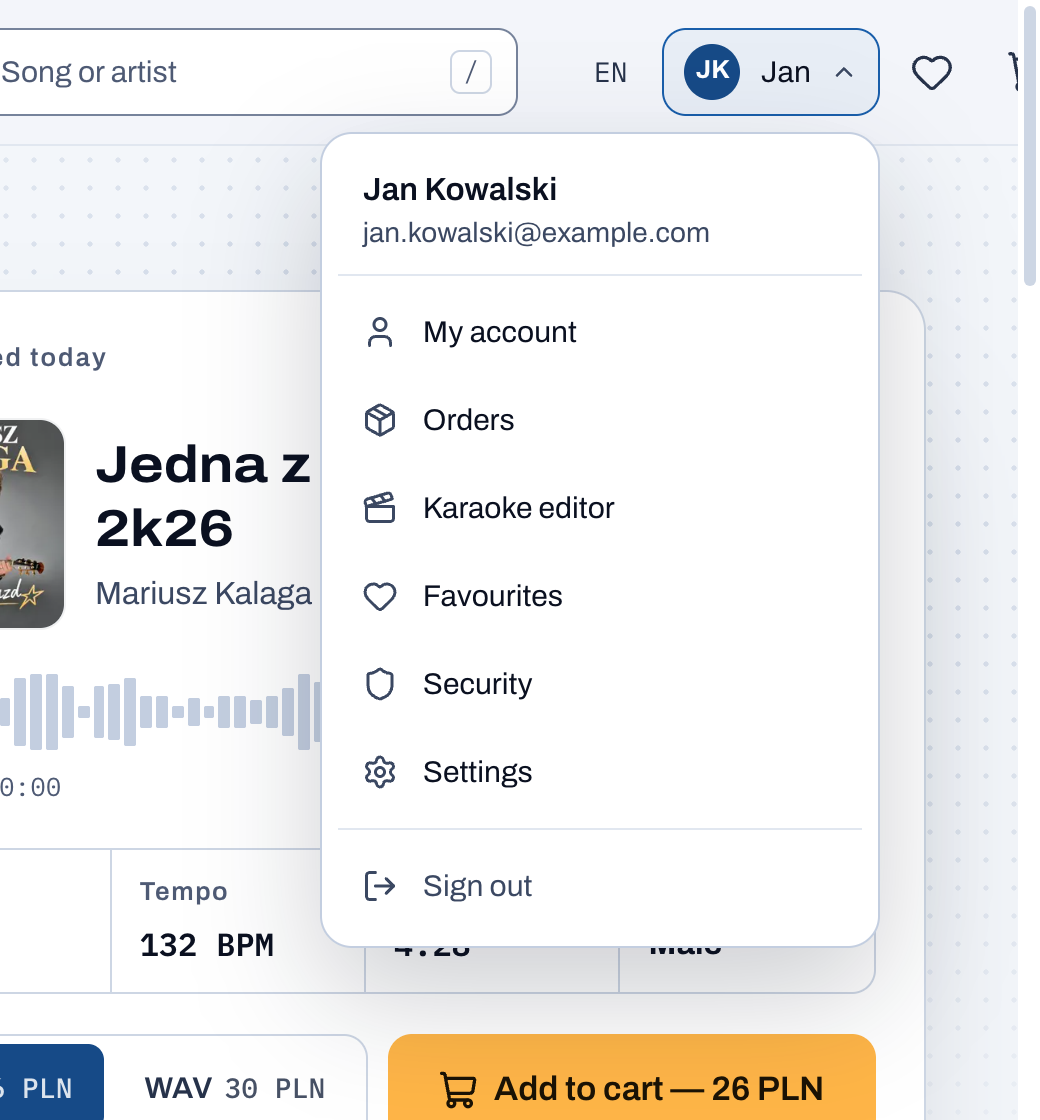
The list of your projects and purchased tracks opens.
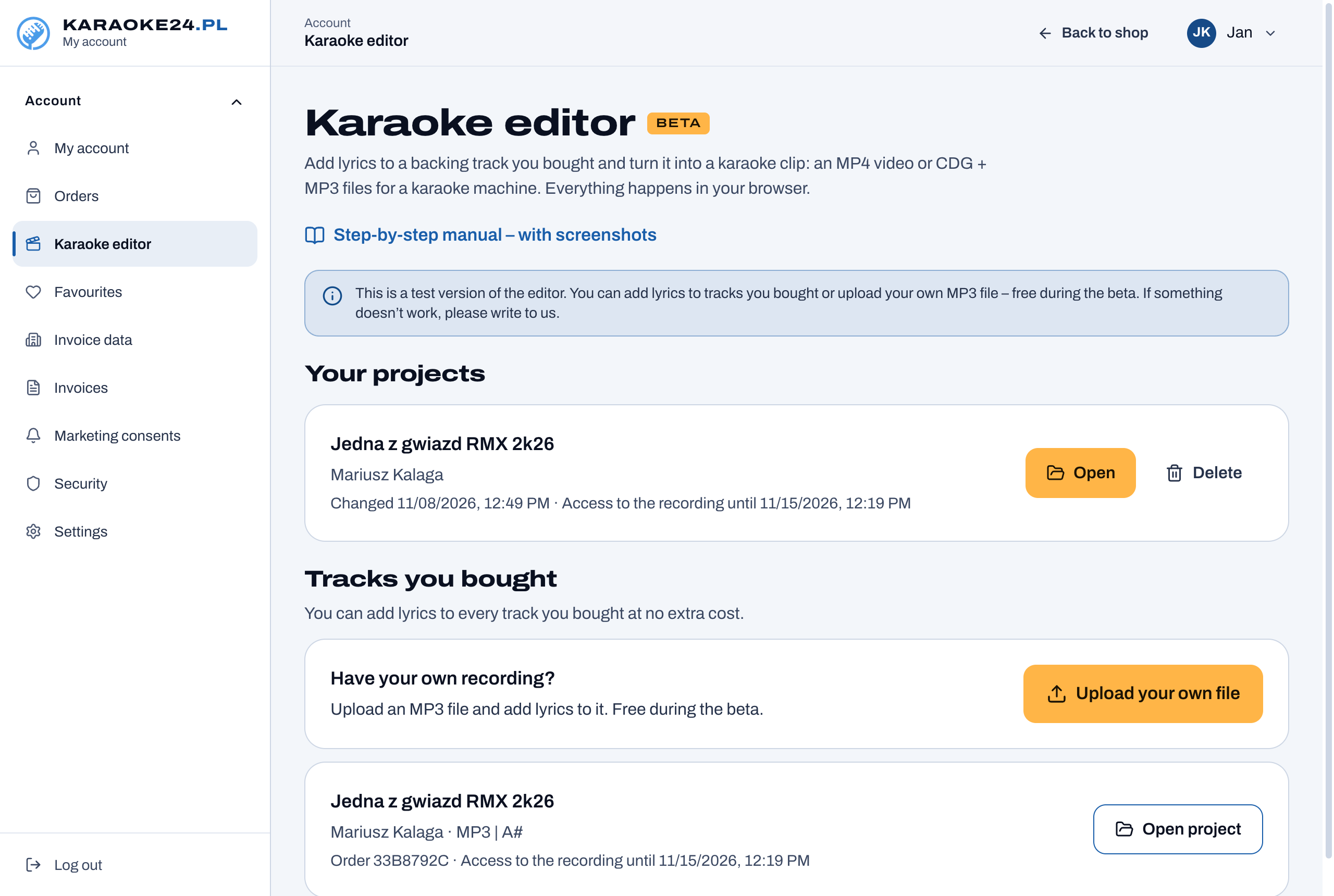
At the top are Your projects – clips you are already working on. Open takes you back to a project, Delete removes it – for 14 days you will still see it further down under Deleted projects, then it is gone for good (the purchased track stays as it is).
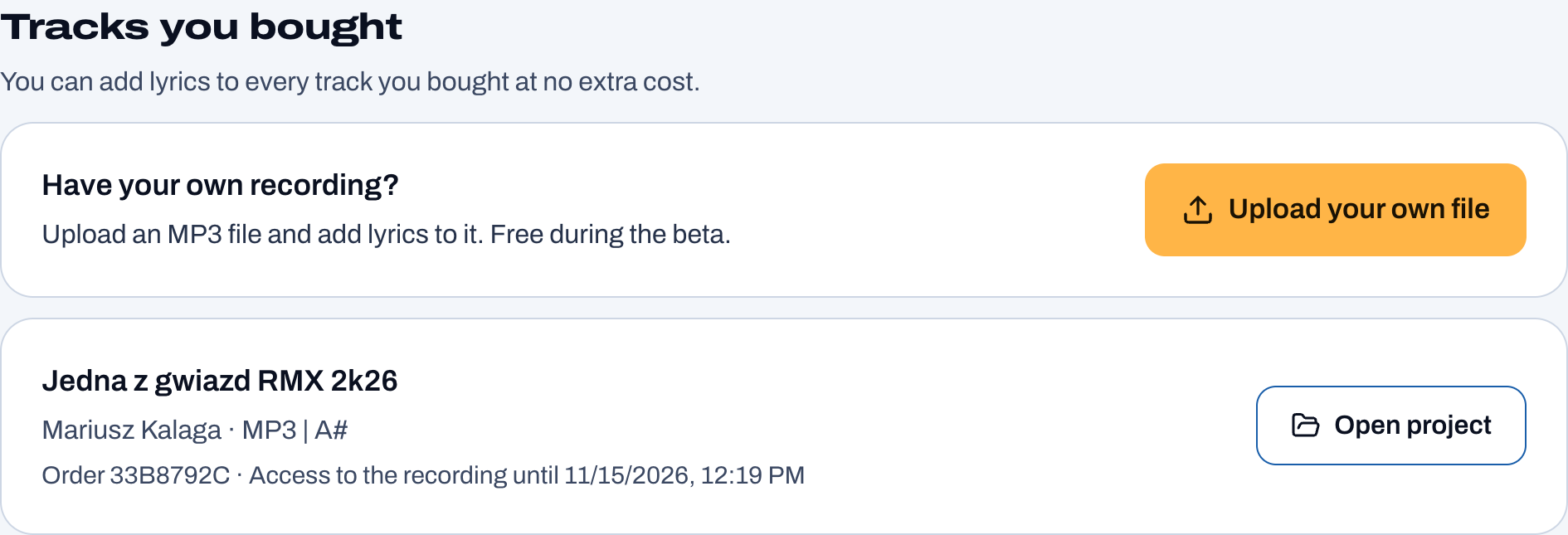
Below are the Tracks you bought. Next to a track without lyrics yet, click Add lyrics – a new project is created. If there is already a project, you will see Open project.
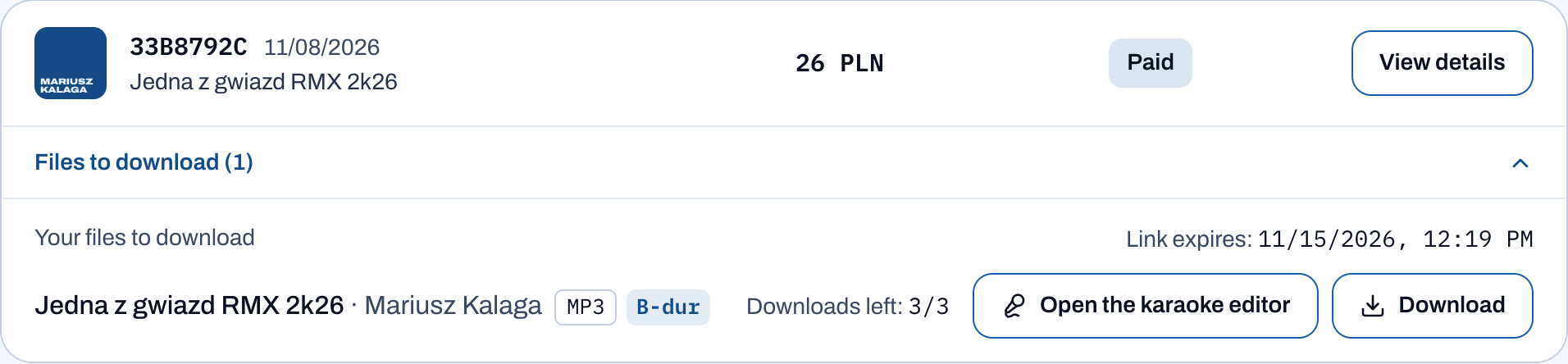
b) From the order history. In My account → Orders, next to every paid track, there is a button Open the karaoke editor. It takes you straight to the editor for that track.
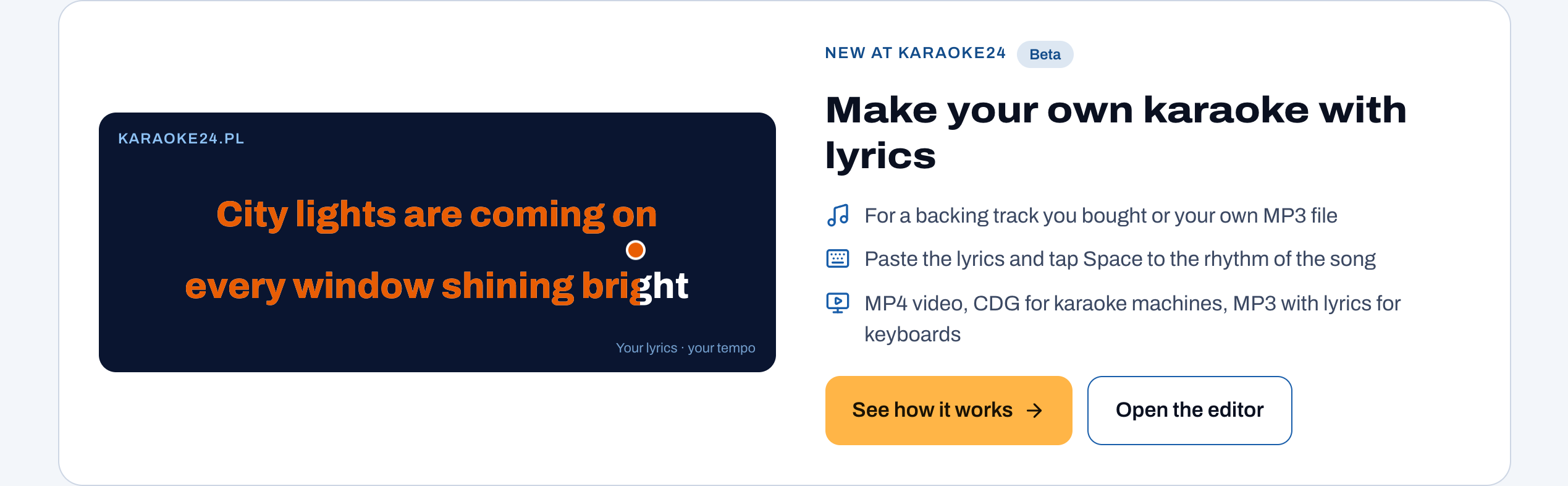
c) From the home page. On the shop’s home page there is a banner Make your own karaoke with lyrics. The Open the editor button takes you to the editor.
3. Step 1 – Lyrics
The editor has three steps, always visible at the top: 1 Lyrics, 2 Recording, 3 Preview and save. Under each step you can see how much is done.
What to do:
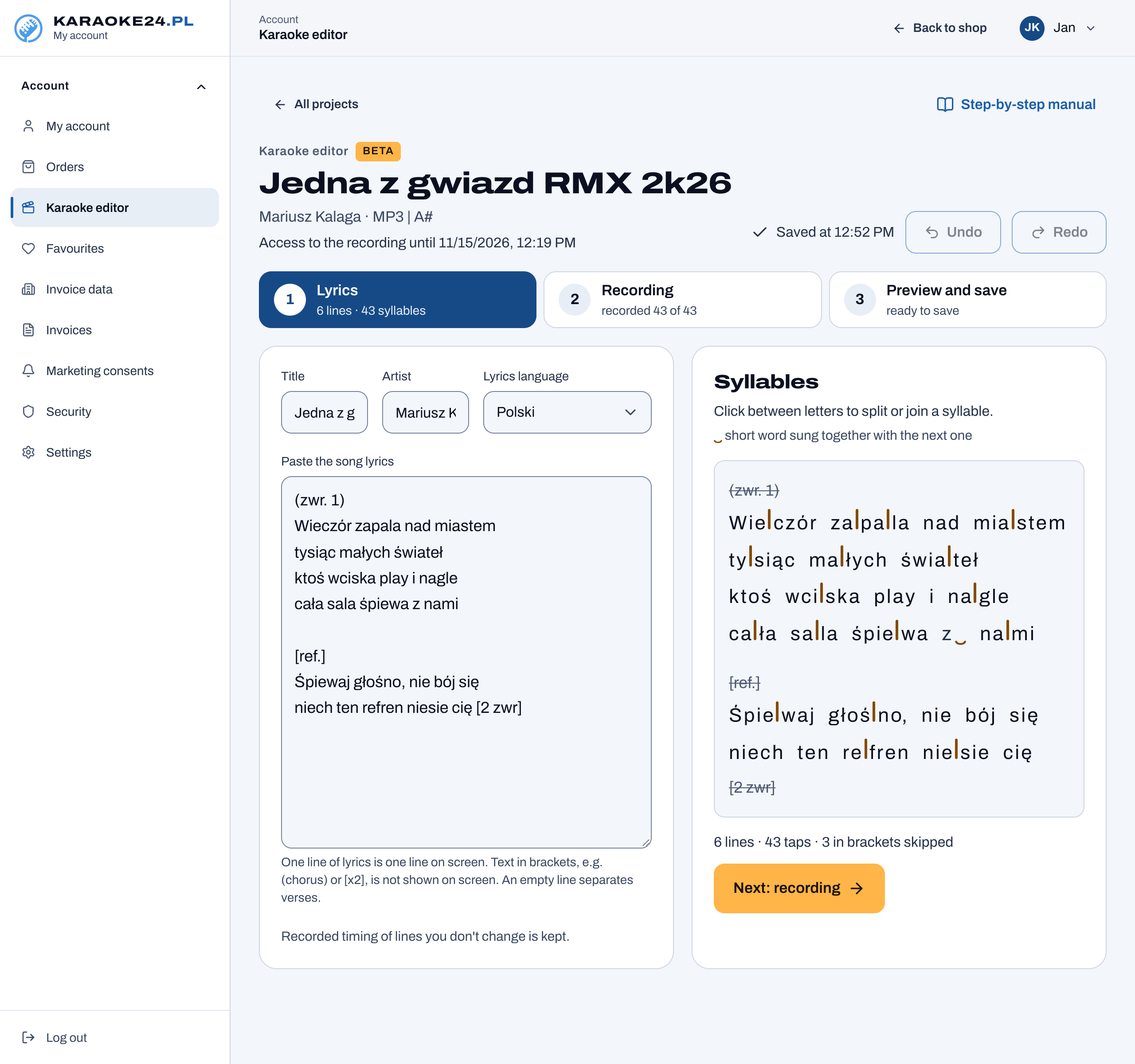
- Check the Title and Artist – they appear on the title screen at the start of the clip.
- Choose the Lyrics language – the syllable split depends on it. The editor splits lyrics into syllables in six languages: Polish, Czech, Ukrainian, German, English and Spanish. You can paste lyrics in another language too, but you will have to correct the syllable split by hand.
- Paste the song lyrics into the field Paste the song lyrics.
A few simple rules:
- One line of lyrics is one line on the screen. If a line is too long, split it with Enter.
- An empty line separates verses.
- Text in brackets does not appear on the screen, e.g. “(verse 1)”, “[chorus]”, “[x2]”. You can keep it as a note for yourself – the editor skips it (it is crossed out on the right).
Syllable split (on the right). The editor splits the lyrics into syllables by itself. An orange line marks the border of a syllable. If you don’t like the split, click between the letters – the line appears or disappears.
A small arc under a word (e.g. “to‿me”) marks a short word sung together with the next one. You record such two words with one tap.
Under the split you can see a summary, e.g. “6 lines · 44 taps”. That is how many times you will press Space in step 2.
When the lyrics are ready, click Next: recording.
4. Step 2 – Recording
In this step you listen to the song and press Space at the start of each syllable. This is how the editor learns when each syllable should light up.
Settings before recording
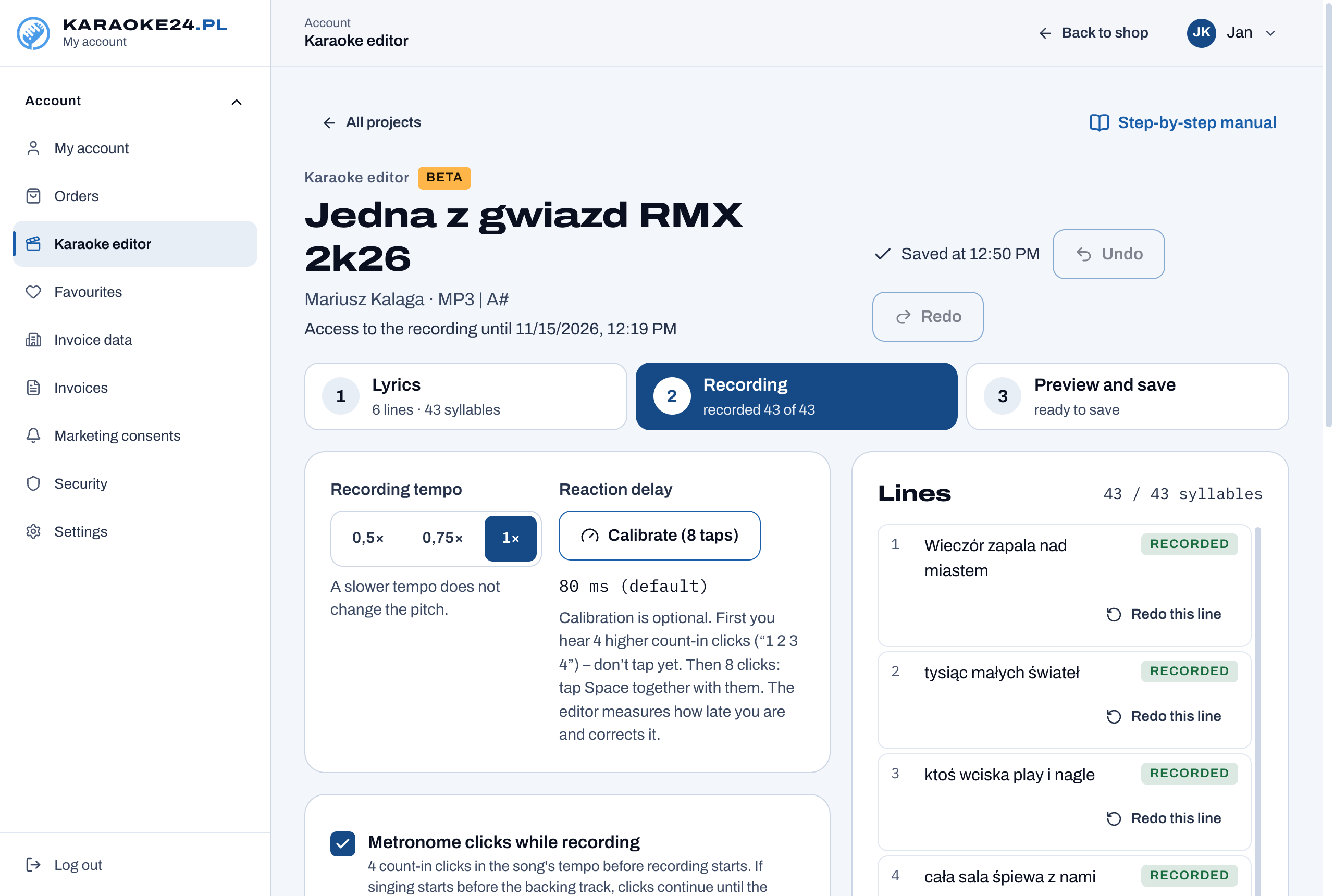
Recording tempo – 0.5×, 0.75× or 1×. To begin with we recommend 0.75×: the music plays slower, so it is easier to hit the syllables. A slower tempo does not change the pitch, and the finished clip is in the normal tempo anyway.
Reaction delay (calibration) – optional, but it helps. Everyone presses a key a little too late. Click Calibrate (8 taps):
- first you hear 4 higher clicks (“1 2 3 4”) – don’t tap yet,
- then 8 clicks – tap Space together with them.
The editor measures how late you are and corrects it by itself.
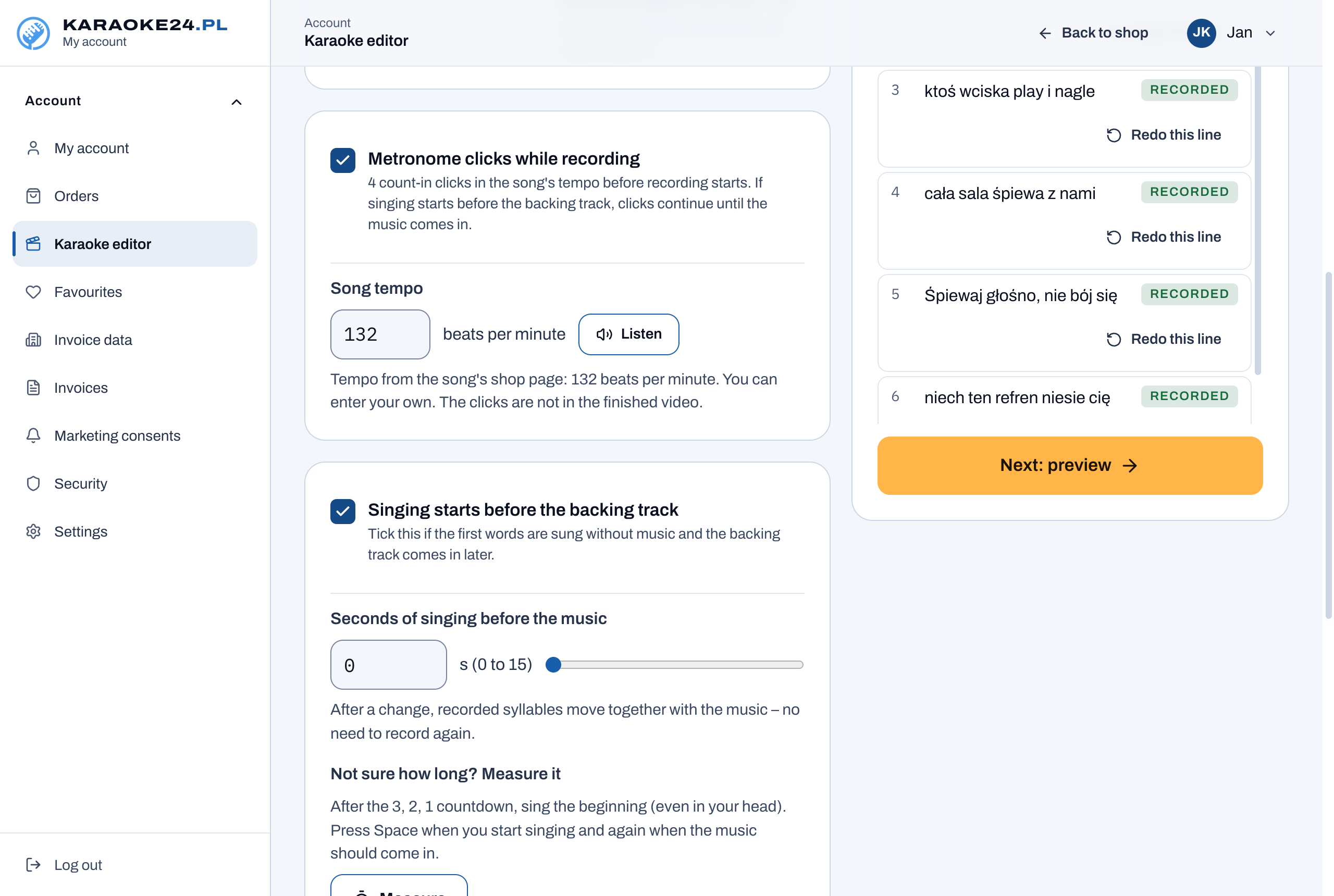
Metronome clicks while recording – tick it if you want to hear a count-in. Before the start you hear 4 clicks in the song’s tempo, then the music starts.
- For songs bought at Karaoke24 the Song tempo is filled in automatically from the song’s page in the shop. You can enter your own (from 40 to 240 beats per minute).
- The Listen button lets you check that the clicks can be heard well.
- The clicks are not in the finished clip – you only hear them while recording.
Singing starts before the backing track – tick it if the first words are sung without music and the backing track comes in later. Enter how many seconds of singing come before the music (from 0 to 15). If you don’t know, click Measure:
- after the count-down 3, 2, 1, sing the beginning (even just in your head),
- press Space when you start singing,
- press Space a second time when the music should come in.
The editor then adds silence before the backing track. With the clicks switched on, the metronome plays until the music comes in.
Recording
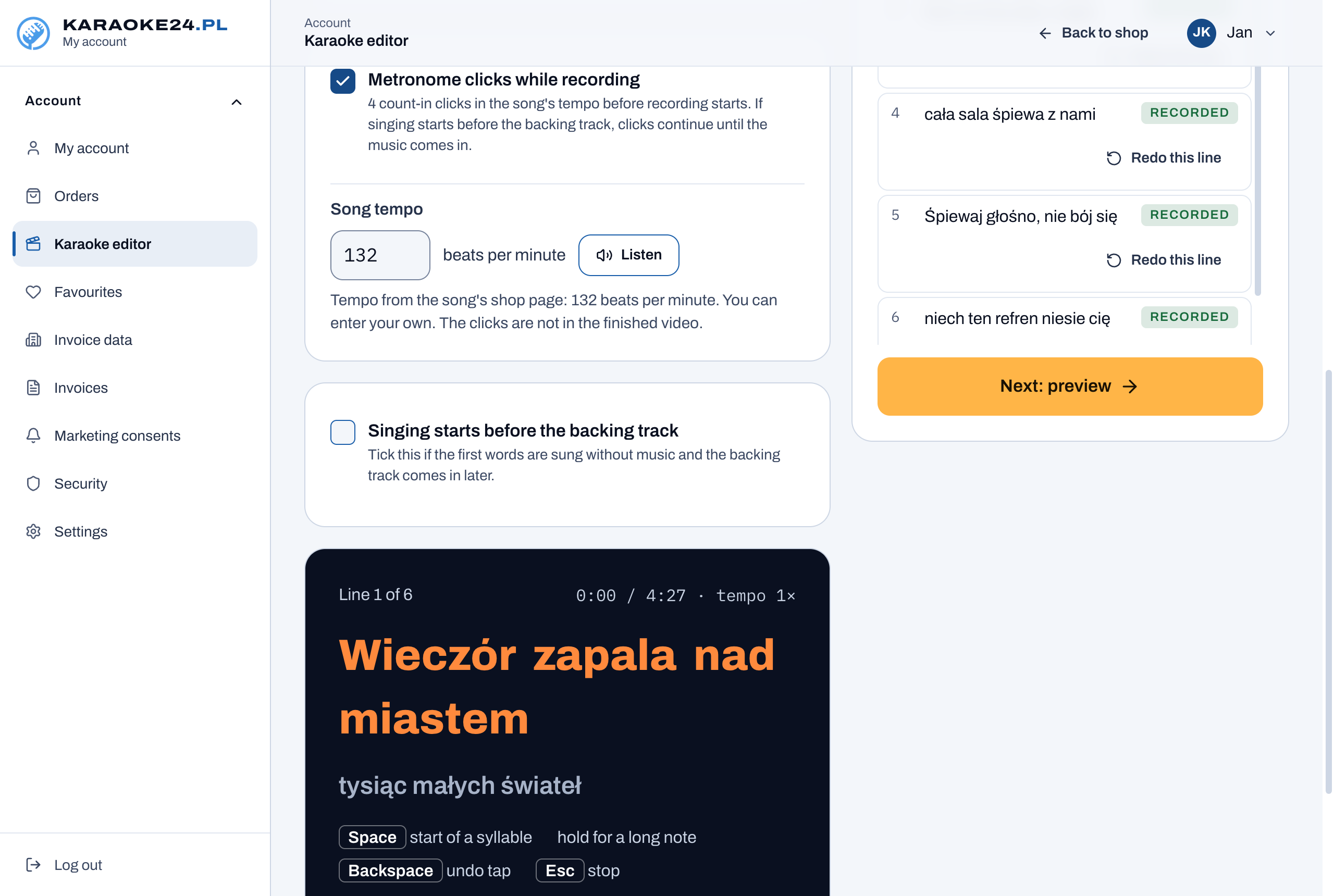
- Click Record from the start.
- A count-down appears, and the first line is already on the screen.
- When the music starts, press Space at the start of each syllable – as if you were singing it.
- On a long note, hold Space for as long as the note lasts.
- If you tap too early or once too often, press Backspace – it undoes the last tap.
- Esc stops the recording.
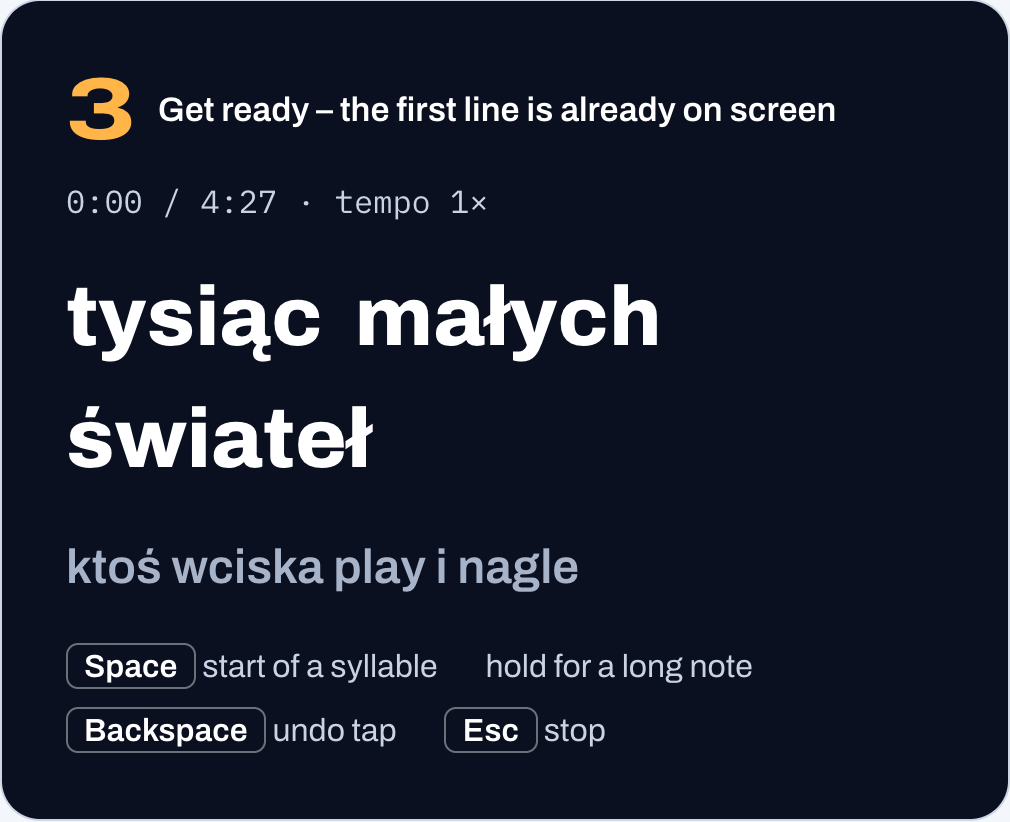
The keys are always labelled at the bottom of the recording window.
Corrections. On the right is the list of Lines. For each line you can see whether it is recorded, partly recorded or missing.
- Redo this line – you record only this one line. The music starts a moment before it.
- Record missing – you record only what is not there yet.
- Record from the start asks for confirmation when a recording already exists (“Click again”), so you don’t delete your work by mistake.
When all syllables are recorded, click Next: preview.
5. Step 3 – Preview and save
Preview
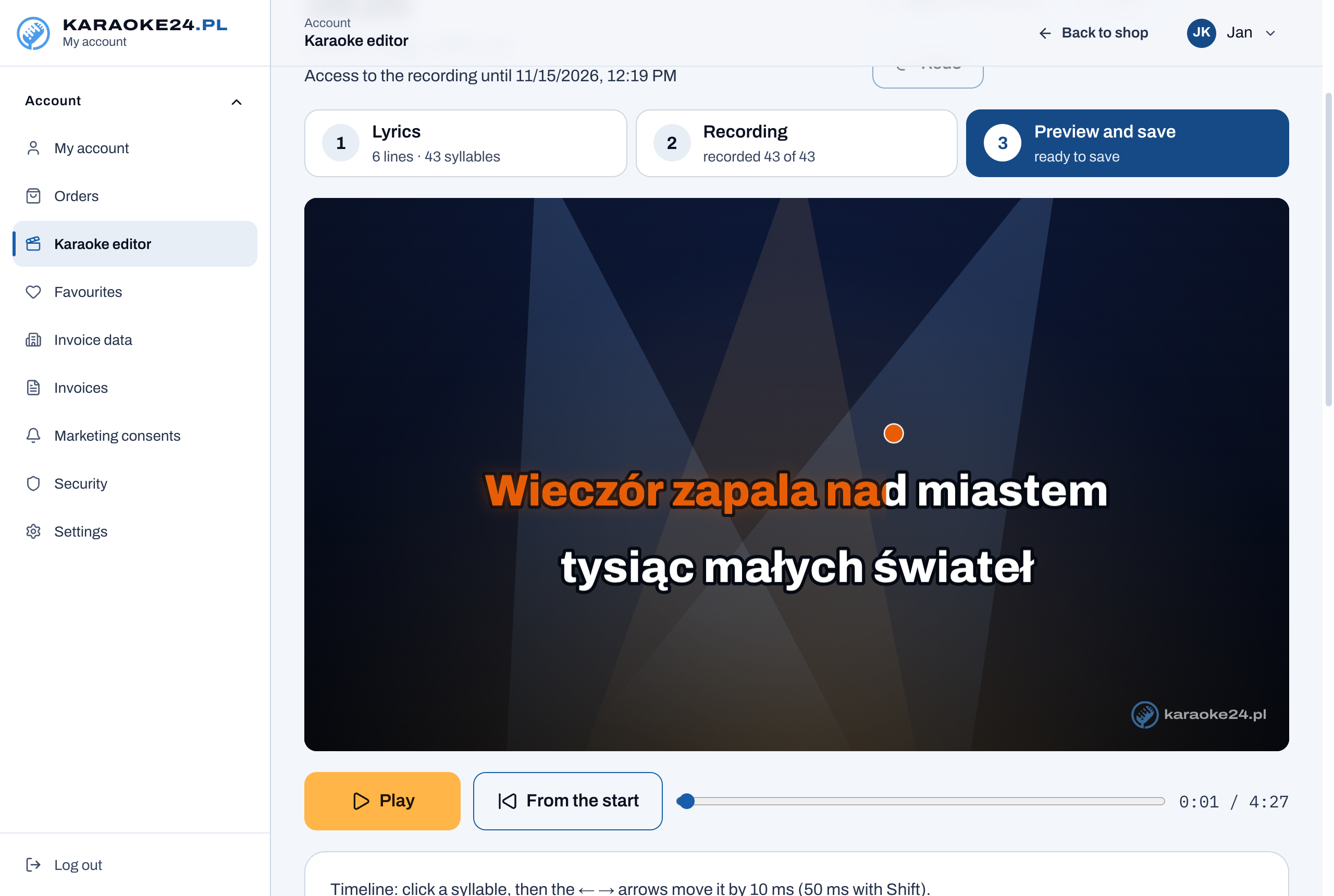
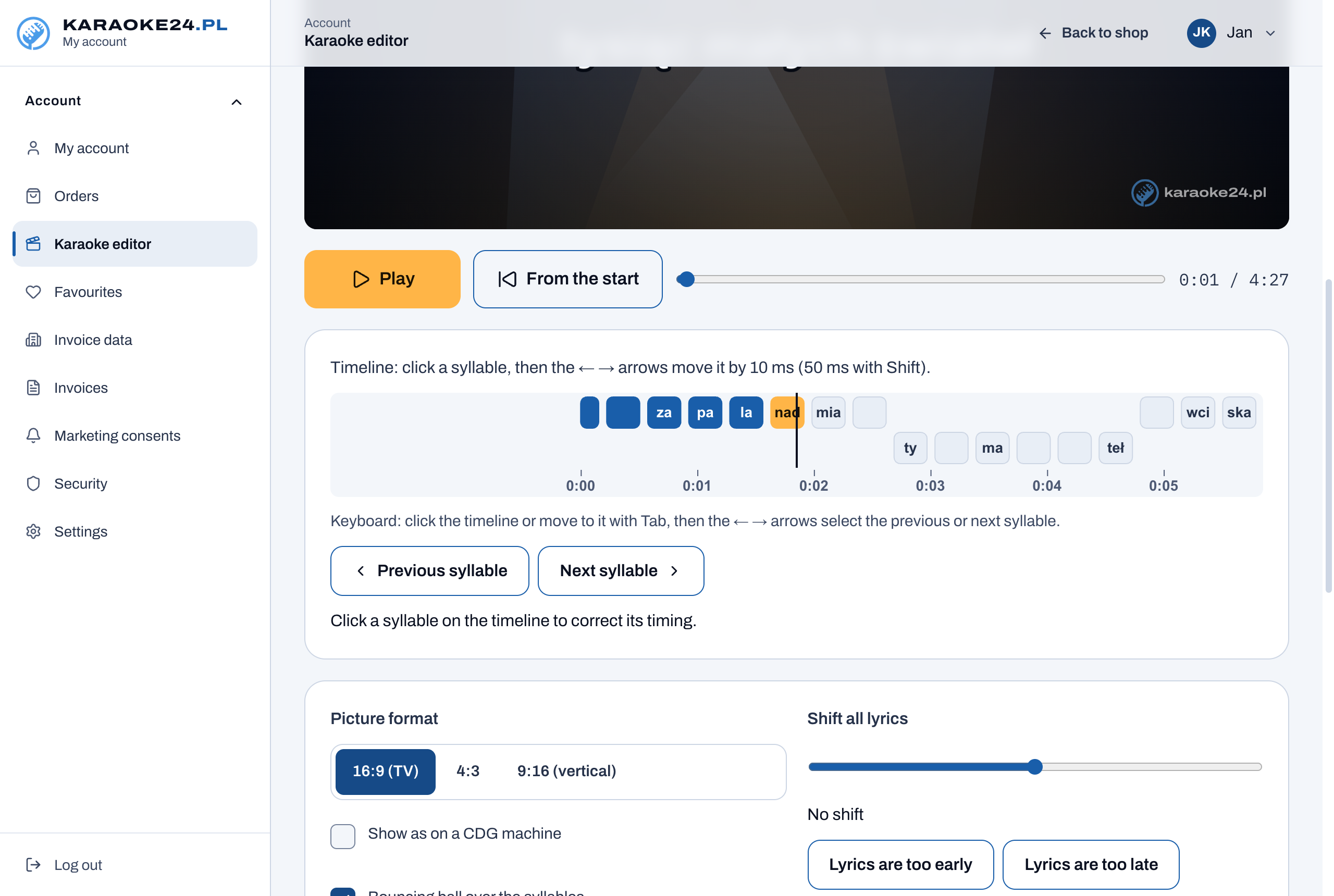
Click Play – you see the clip as it will look on a TV. From the start goes back to the beginning, and with the slider you can jump to any point.
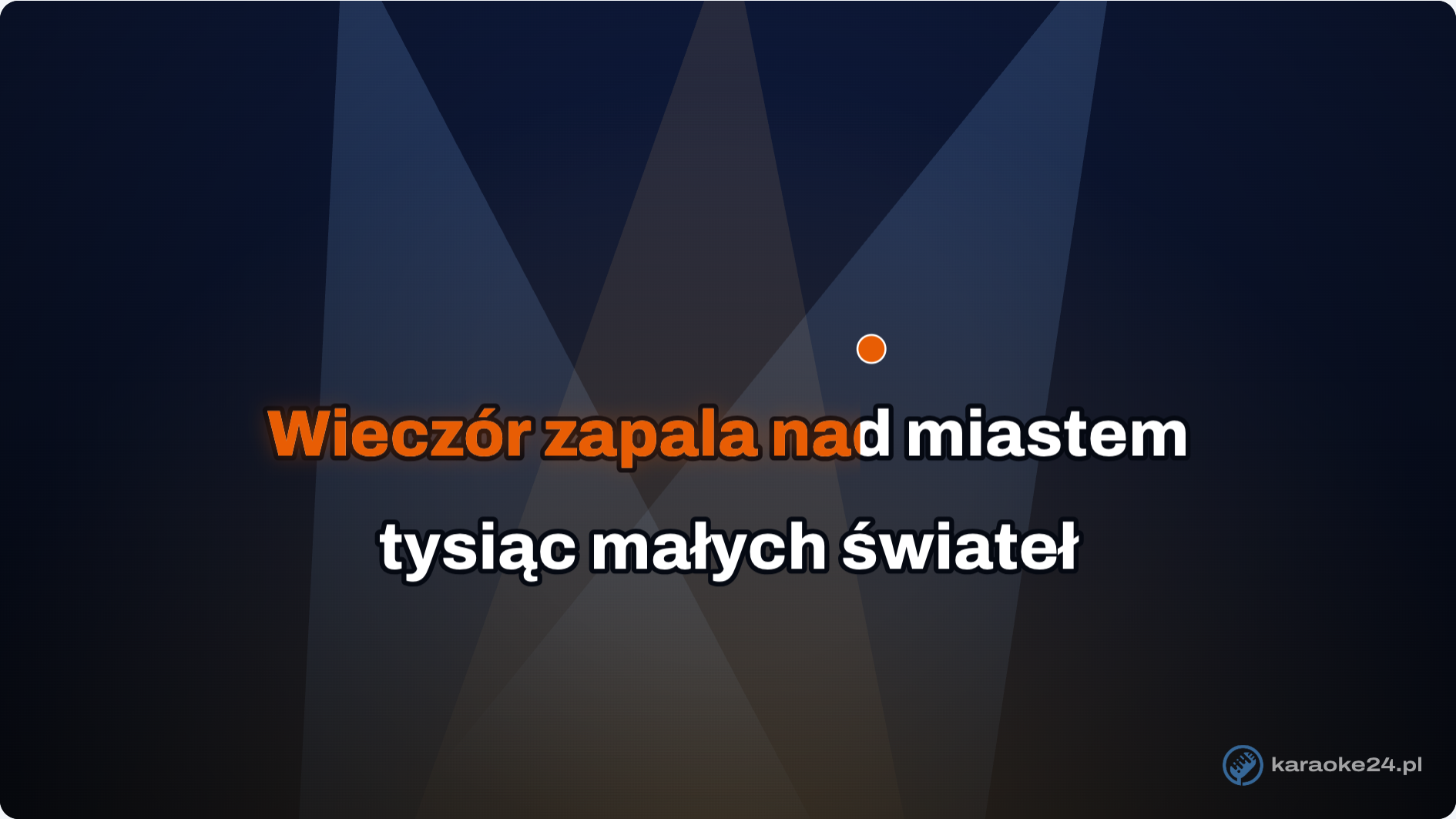
Bouncing ball. An orange ball bounces over the lyrics. The last count-in dot before a line turns into the ball, which hops from syllable to syllable and shows when to sing. You can switch the ball off (see below).
Timeline – correcting single syllables. Under the preview there is a strip with the syllables.
- Click a syllable that lights up too early or too late.
- With the ← → arrow keys you move it by 10 ms (with Shift held – by 50 ms).
- With Previous syllable / Next syllable you go to the neighbouring syllables.
You can also move the whole line at once.
Clip appearance
- Picture format: 16:9 (TV) – for a normal TV and laptop; 4:3 – for older TVs and projectors; 9:16 (vertical) – for watching on a phone.
- Show as on a CDG machine – a preview of how the CDG file will look (fewer colours, lower resolution).
- Bouncing ball over the syllables – on by default; untick it if you prefer only the coloured lyrics.
- Shift all lyrics – when all the lyrics are a little too early or too late, click Lyrics are too early or Lyrics are too late. This moves everything at once.
The clip has the Karaoke24 mark in the corner.
Saving the clip
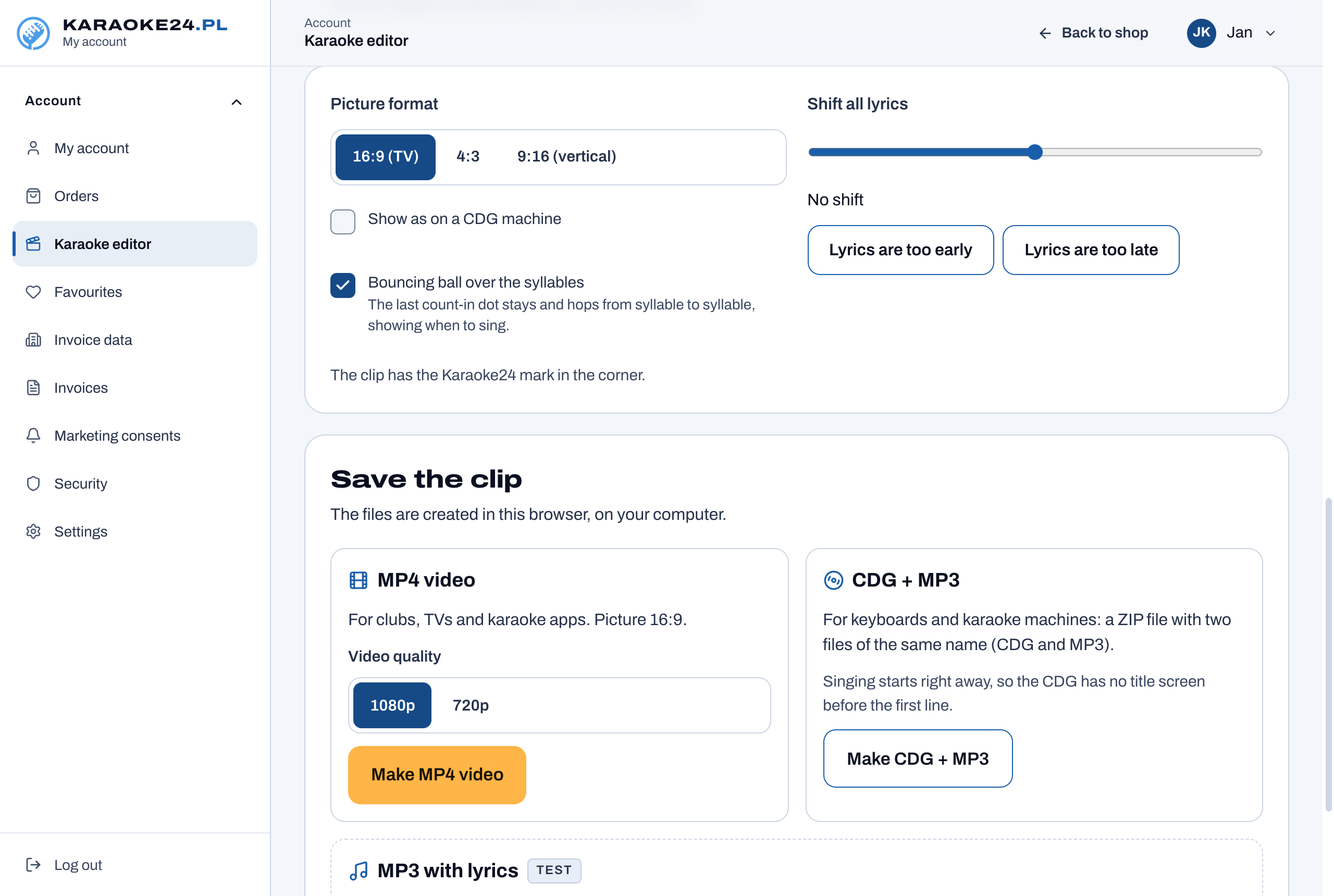
The files are made in the browser, on your computer. Don’t close the tab and don’t let the computer go to sleep until the file is ready. A bar shows the progress and how much time is left.
| File | What for | How |
|---|---|---|
| MP4 video | TV (from a USB stick), laptop, projector, karaoke software | choose the Video quality (1080p – better, 720p – faster) and click Make MP4 video |
| CDG + MP3 | keyboards (e.g. Yamaha Genos, Korg Pa) and karaoke machines | click Make CDG + MP3 – you get a ZIP file with two files of the same name |
| MP3 with lyrics (test) | keyboards that show the lyrics stored in the MP3 (e.g. Yamaha Genos, Korg Pa) | choose your instrument (Yamaha or Korg) and click Make MP3 with lyrics; you can also save an .LRC file |
Finally click the Save button – the file goes to your “Downloads” folder.
Good to know:
- If your backing track is a WAV file, for CDG and MP3 with lyrics the editor converts it to an MP3 in the highest quality (320 kb/s). This takes a little longer.
- When singing starts in the very first second, the video gets a few seconds of silence at the start so that the title screen fits. In CDG the title screen is then left out.
- If the computer makes the video very slowly, stop and choose 720p.
- MP3 with lyrics is new and we are still testing it on different instruments. For karaoke machines CDG + MP3 is the safer choice.
Saving your work
The project saves itself. At the top you see “Saved at …”. Undo and Redo (or Ctrl+Z and Ctrl+Y) take back and restore your latest changes. If the internet connection drops, the changes stay on your computer and are saved when the connection is back.
6. Your own MP3 file
In the beta you can also add lyrics to your own MP3 recording. In the editor, in the Tracks you bought section, click Upload your own file.
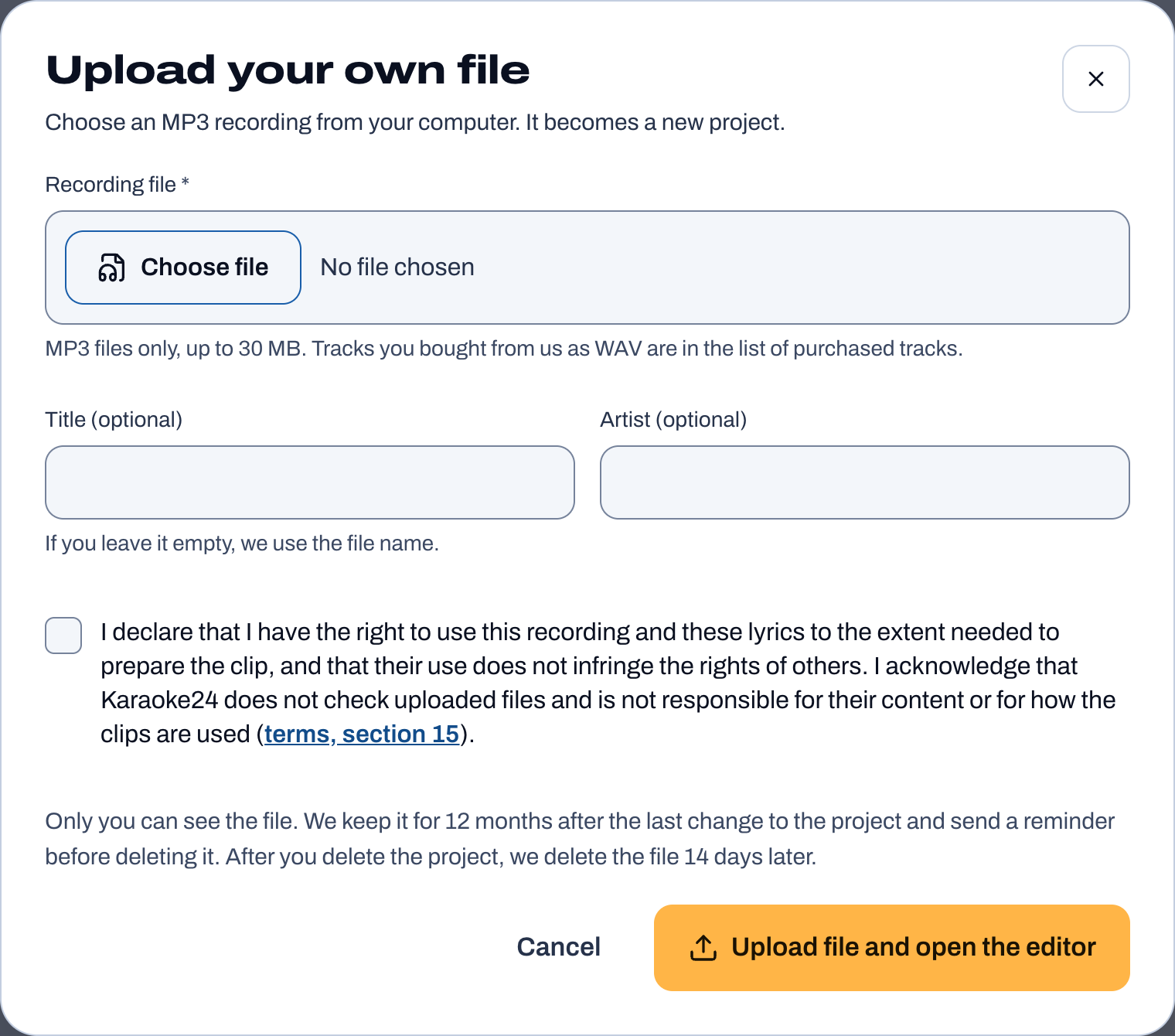
- Click Choose file and select the MP3 file on your computer (up to 30 MB).
- You can enter the Title and Artist. If you leave them empty, we use the file name.
- Tick the statement that you have the right to use this recording and these lyrics.
- Click Upload file and open the editor.
Important:
- Only MP3 files can be uploaded. WAV files only work for tracks bought at Karaoke24.
- Only you can see the file.
- We keep the file for 12 months after the last change to the project. Before deleting it we send you a reminder by e-mail. Every change to the project extends this time.
- A deleted project stays on the list, marked as deleted, for 14 days – then we delete it for good, with the file.
- You are responsible for what you upload – Karaoke24 does not check uploaded files.
7. Access to the recording and renewing it
You can download a purchased backing track and use it in the editor for 7 days after the purchase. You can see the date in the editor: “Access to the recording until …”.
After that:
- you can still edit the lyrics,
- to record and save a clip you need to renew access.
How to renew access:
- Click Renew access – in the editor or in the order history.
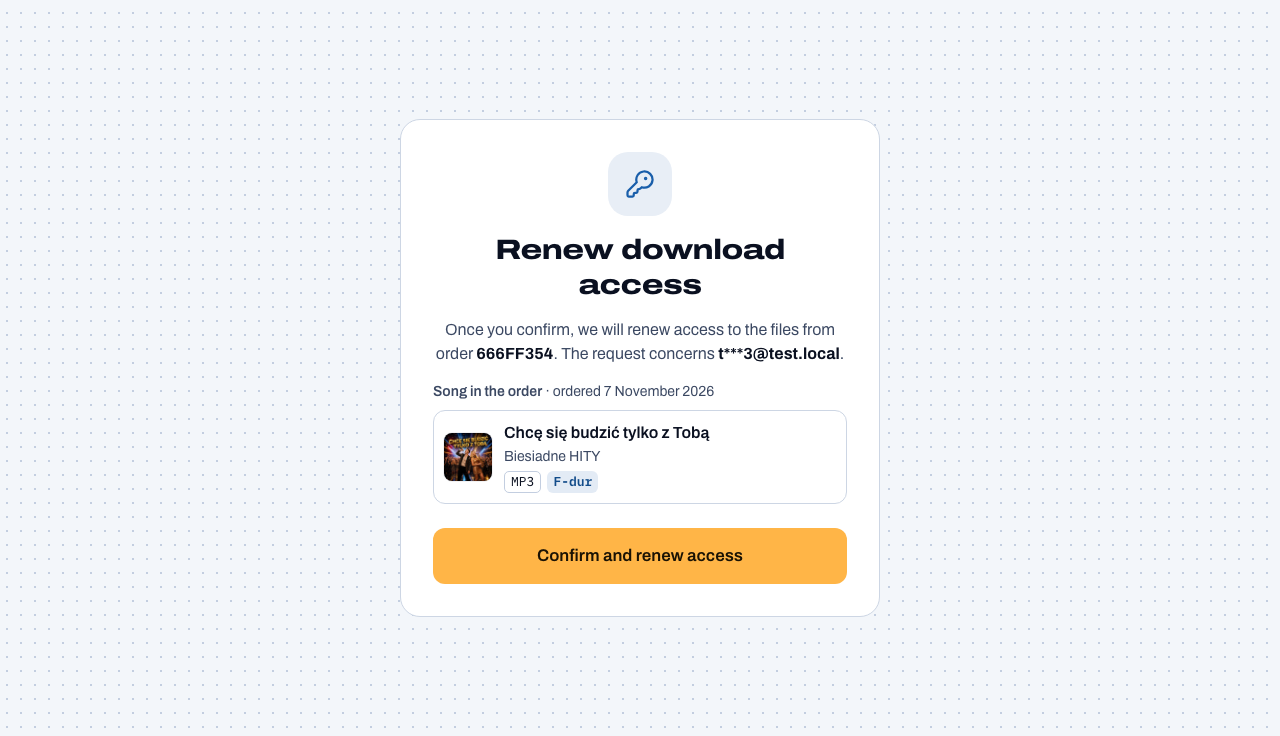
- We send a link to the e-mail address given in the order.
- Click the link in the e-mail. You will see what the request is about – the order number and the list of tracks with artist, format and key.
- Click Confirm and renew access.
8. Questions and problems
I can’t hear the metronome clicks.
Check that Metronome clicks while recording is ticked. Click Listen – you should hear 4 clicks. Also check the volume of your computer.
The lyrics light up a little too late (or too early) in the whole song.
In step 3 use the Lyrics are too early / Lyrics are too late buttons. Next time calibrate before recording.
One syllable is out of time.
In step 3 click it on the timeline and move it with the ← → arrow keys.
I made a mistake in the middle of a line.
Press Backspace to undo the tap, or finish and then click Redo this line.
The first words are sung without music.
Tick Singing starts before the backing track and click Measure.
The editor says “The editor works on a computer”.
You are opening the editor on a phone or tablet. Recording needs a computer with a keyboard.
I can’t save the MP4 video.
Use an up-to-date Chrome or Edge browser on a computer.
Making the video takes a very long time.
Don’t close the tab and don’t let the computer sleep. If it takes too long, stop and choose 720p.
It says “Access to the recording has expired”.
Click Renew access and confirm the link from the e-mail – see chapter 7.
It says “This project is open in another tab”.
The project is open in two tabs. Close one, or click Continue editing here in the one you want to work in.
Something doesn’t work.
Write to us. Give the song title and describe what happened – this is a test version and every comment helps us improve it.
What's new
November 10, 2026
- Sharper lyrics in CDG + MP3. Letters have crisp edges without blurred pixels, and the highlight moves more smoothly.
- MP3 with lyrics: choose your instrument – Yamaha or Korg. On Korg the "??" marks before words are gone and accented letters display correctly. Save files you made earlier once more.